

DroidCam
DroidCam Pro turns your Android phone into a wireless webcam that you can use with popular video calling and streaming apps on your computer. It helps you upgrade video quality without buying a separate camera.
With support for WiFi and USB, adjustable resolutions, and audio capture, the app offers a flexible way to join meetings, online classes, and live streams using your phone’s camera and microphone.
You can download the official DroidCam Pro APK directly from our website and install it on your Android device to start using it as a full-featured webcam for your PC.
Rate this app
App details
- App name
- DroidCam
- Category
- Tools
- Version
- v6.10
- Size
- 12.78 MB
- Requirements
- 5.0 and Up
- Package name
- com.dev47apps.droidcamx
- Publisher
- Dev47Apps
- Price
- Free
- Mod
- No
- Downloads
- 56,003
- Rating
- 4.6 / 5
- Rating count
- 24,000
- Play Store
- Yes
- Requires root
- No
- Offline support
- No
- Contains ads
- No
- In-app purchases
- Yes
- Updated
- May 13, 2026
- Age rating
- Rated for 3+
Table of contents
What is DroidCam Pro for Android
DroidCam Pro is the premium Android client of the DroidCam system by Dev47Apps. It lets you use your Android phone or tablet as a webcam and microphone for your Windows, macOS, or Linux computer.
After installing the app on your phone and the companion client on your PC, you can connect both devices over WiFi, LAN, or USB. Your computer then detects the phone as a standard webcam, which you can select in apps such as Zoom, Skype, Microsoft Teams, OBS Studio, Google Meet, and many others.
The Pro version removes many limitations of the free edition and adds extra features like higher resolutions, adjustable FPS, camera controls, image mirroring, and more control over how your video feed looks during calls, classes, and recordings.
Why download DroidCam Pro APK from our website
Downloading the DroidCam Pro APK from our website allows you to get the Android app file directly to your device without visiting other sources. You can keep a backup of the installer, share it across your own devices, and reinstall it whenever you need.
Once installed, DroidCam Pro helps you avoid buying a separate webcam while still getting clear video and audio for online meetings and streaming. The app is especially useful for laptops with poor built-in cameras or desktop PCs that do not include a webcam.
Our download page provides the listed version, package name, and basic information about the app so that you know exactly which build you are installing on your Android phone or tablet.
How DroidCam Pro can be useful
DroidCam Pro is helpful for anyone who spends a lot of time on video calls or creating live content. Students and teachers can join online classes using their phone camera, remote workers can improve their meeting quality, and streamers can capture better angles without buying extra hardware.
The app lets you place your phone anywhere on your desk, tripod, or mount, so you can fine-tune framing and lighting more easily than with a fixed laptop camera. Combined with higher resolutions and manual controls, this flexibility leads to a cleaner and more professional look.
Because the phone connects to your computer as a regular webcam, you can keep using your favorite platforms and tools while enjoying better video quality and extra features like screenshots and screen recording on your device.
How to download and install DroidCam Pro APK
You can get the DroidCam Pro APK file directly from our website and install it manually on your Android device. Follow these steps to complete the process smoothly:
Scroll to the download section on this page and tap the provided DroidCam Pro APK link.
Confirm the download in your browser and wait for the APK file to finish downloading.
Open your phone’s File Manager and go to the Downloads folder.
Tap the DroidCam Pro APK file to start installation.
If prompted, allow installation from unknown apps for your browser or file manager.
Tap Install and wait until the process completes, then tap Open to launch the app.
After installation, install the DroidCam client on your PC from the official Dev47Apps website, connect both devices, and start using your phone as a webcam.
Features
Use phone as wireless webcam
Turn your Android device into a webcam for your computer over WiFi, LAN, or USB connection.
Works with popular video apps
Use the camera feed in Zoom, Skype, Microsoft Teams, Google Meet, OBS Studio, and many other desktop applications.
High quality video and audio
Access higher resolutions, better image quality, and microphone capture compared to many built-in laptop webcams.
Adjustable display and framing
Resize and adjust the preview, switch between front and rear cameras, and choose how the picture appears on screen.
Screenshot capture
Take quick screenshots of the current view with a tap so you can save important moments during calls or sessions.
Screen recording support
Record what is happening on the screen during classes, meetings, or presentations for later review.
Built in editing tools
Add text, images, and simple overlays on top of the display to highlight points or personalize your feed.
Simple interface
Clean, user friendly layout that makes connecting to the PC client and switching options straightforward.
Screenshots
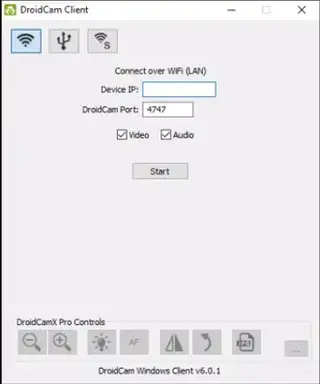
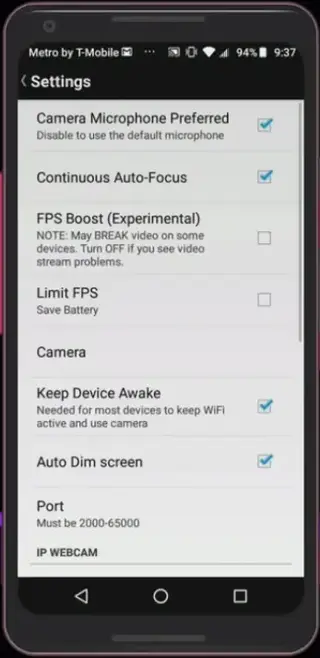
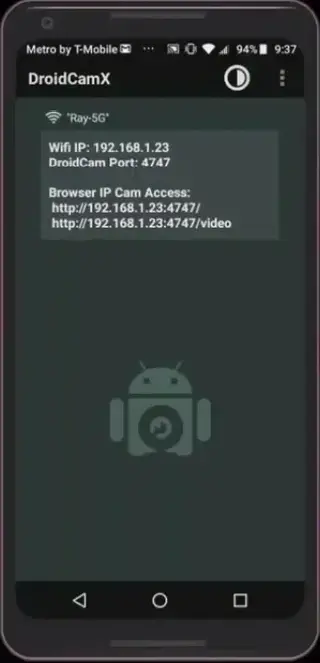
How to use DroidCam Pro with your PC
Using DroidCam Pro with your computer involves pairing the Android app with the official desktop client. After installing the APK on your phone, download and install the DroidCam client for Windows, macOS, or Linux from the Dev47Apps website.
Make sure your phone and PC are on the same network if you are connecting over WiFi or LAN. Open DroidCam Pro on your phone to see the IP address and port. Enter these details in the PC client, choose whether to enable video and audio, and then start the connection. The PC will recognize the phone as a standard webcam, which you can select in your preferred video app.
Tips for better video quality
To get the most from DroidCam Pro, position your phone at eye level and use a stable stand or tripod to avoid shaky footage. Enable the rear camera if you want sharper image quality and more control over focus.
Good lighting also makes a big difference. Face a window or soft light source instead of placing bright light behind you. Inside the app, adjust resolution and frame rate according to your network and PC performance to balance sharpness and smooth playback.
Compatibility and system requirements
DroidCam Pro supports Android 5.0 and above, according to the provided details. The app works alongside the official DroidCam desktop client, which is available for major desktop operating systems. On the PC side, you only need a compatible OS, available USB port or WiFi connection, and enough system resources to handle video streaming.
Most modern Android phones and entry level laptops can run DroidCam smoothly. For best performance, close unnecessary apps while streaming and keep your device charged or connected to power during long sessions.
FAQs
Pros
- Turns Android phone into a fully usable webcam for PC
- Provides better video quality than many built in laptop cameras
- Supports popular video calling and streaming applications
- Offers extra options like screenshots and screen recording
- Simple setup process with a clear and friendly interface
Cons
- Requires a companion client on PC to work properly
- Depends on WiFi or USB connection quality for stable video
- Some advanced functions are only available in the Pro version
- Continuous use can drain phone battery faster
Conclusion
DroidCam Pro is a practical solution for turning your Android device into a capable webcam for your computer. If you want better video quality for meetings, classes, or streaming without buying new hardware, you can download the DroidCam Pro APK from our website and set it up in a few minutes. Keep visiting Apkoll.com to get more unique apps.




Comments
No approved comments yet.