

ExaGear Strategies
ExaGear Strategies is a Windows game emulator that lets you run selected classic PC strategy titles on your Android phone or tablet. It translates x86 Windows games so you can enjoy them with touch controls.
With this app you can launch compatible EXE files, customize on-screen controls, and tune performance for smoother gameplay. You can download the official ExaGear Strategies XAPK file directly from our website and start configuring your favorite strategy games.
The emulator focuses on classic turn-based and real-time strategy games, providing a simple interface, controller presets, and support for external game data copied from your PC or other storage.
Rate this app
App details
- App name
- ExaGear Strategies
- Category
- Tools
- Version
- v3.5.0
- Size
- 5.75 MB
- Requirements
- 5.0 and Up
- Package name
- com.eltechs.es
- Publisher
- Eltechs
- Price
- Free
- Mod
- No
- Downloads
- 100,027
- Rating
- 4.5 / 5
- Rating count
- 25,000
- Play Store
- No
- Requires root
- No
- Offline support
- Yes
- Contains ads
- No
- In-app purchases
- No
- Updated
- Jun 2, 2026
- Age rating
- Rated for 3+
Table of contents
What is ExaGear Strategies?
ExaGear Strategies is an Android emulator app developed by Eltechs that runs a customized environment for classic Windows PC strategy games. Instead of providing games itself, it offers a layer that can execute supported x86 EXE files on ARM-based Android devices.
Once installed, you can copy your legally obtained PC game folders to your phone, point ExaGear Strategies to the game executable, and launch it inside the emulator. The app includes touch-friendly control schemes, resolution options, and presets for well-known titles.
It is mainly used for older strategy games such as Heroes of Might and Magic III, Disciples II, Panzer General II and other similar EXE-based PC releases. The focus is on making these desktop games playable on Android with a mix of virtual buttons and optional external controllers.
The app runs locally on your device, so once you have set up the emulator and copied your game data, you can play without an active internet connection in most cases.
ExaGear Strategies Android is the first available Windows Game Emulator For Android Operating System. With this new Emulator, playing various types of PC Gaming EXE Files. Apart from this, this Tool provides the most advanced-level Emulator services. Get the detailed information related to this tool here. Get similar services with the Skyline Emulator.
Why download ExaGear Strategies for Android?
Many classic strategy games never received native Android ports. ExaGear Strategies helps bridge that gap by allowing you to reuse your existing PC game installs on a mobile device. If you enjoy deep, tactical gameplay but prefer playing on a phone or tablet, this tool offers a way to bring those older titles with you.
The emulator focuses on ease of use for strategy games. It comes with preconfigured control layouts and optimization settings tailored to turn-based and tactical experiences. You can zoom, pan, and interact using touch while still accessing complex in-game menus.
Another reason to download ExaGear Strategies is its flexibility. You can import complete game folders from a PC, external storage, or backup archives. Once the files are in the appropriate directory, the emulator detects the EXE and lets you launch it from the app interface.
Our website provides the XAPK package directly, so you can download the installer, set up the OBB data correctly, and start experimenting with compatible Windows strategy titles on Android.
How is ExaGear Strategies useful?
ExaGear Strategies is useful for players who want desktop-style strategy games on mobile without relying on cloud streaming services. It runs directly on your hardware, which can reduce latency and allow offline play once everything is installed.
The app provides a set of on-screen controls that map keyboard and mouse actions to taps, gestures, and virtual buttons. You can adjust these mappings, change layouts, and save profiles so each game feels more natural on a touchscreen.
For advanced users, ExaGear Strategies exposes configuration options such as resolution, rendering behavior, and performance tweaks. These options help you balance visual quality and speed according to the capabilities of your device.
Because it runs EXE files, the emulator can support a variety of titles released for older versions of Windows, especially games that are light on 3D resources. This makes it a practical choice for fans of classic strategy series who still have access to their original game data.
How to download and install ExaGear Strategies APK
You can download the official ExaGear Strategies XAPK file directly from our website and install it manually on your Android device. Follow these steps carefully so the emulator and its OBB data work correctly.
Step 1: Download the XAPK file
Scroll to the download area on this page.
Tap the download button to save the ExaGear Strategies XAPK file to your device.
Step 2: Enable unknown sources
Open your device Settings.
Go to Security or Apps and notifications (varies by device).
Allow installation from unknown sources or allow your browser or file manager to install apps.
Step 3: Extract the XAPK package
Use a file manager or archive app that can open XAPK or ZIP files.
Extract the downloaded file to a folder on your device.
Inside the extracted folder you will see the APK and an Android or OBB directory.
Step 4: Install the APK
Locate the ExaGear Strategies APK inside the extracted folder.
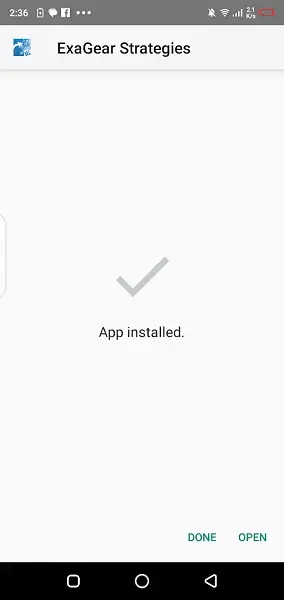
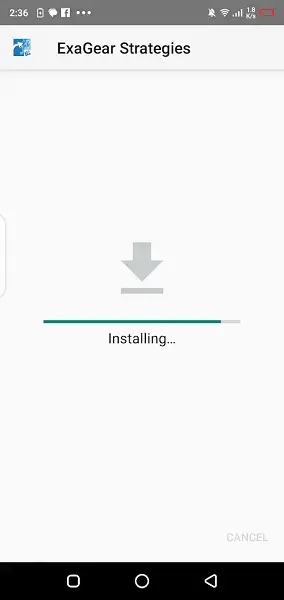
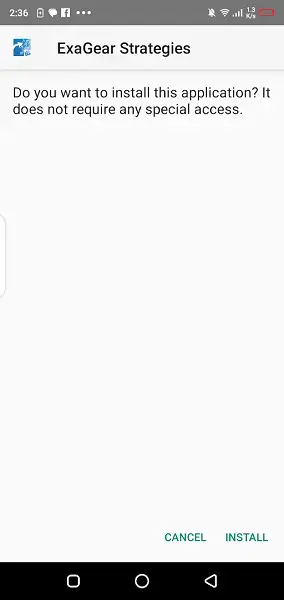
Tap the APK and confirm Install.
Wait for the installation to finish but do not launch the app yet.
Step 5: Place the OBB file correctly
Inside the extracted content, open the Android/OBB path and find the file named similar to main.40.com.eltechs.es.obb.
Copy this OBB file to the following directory on your device: Android/obb/com.eltechs.es/.
If the com.eltechs.es folder does not exist, create it manually and then paste the OBB file inside.
Step 6: Launch the app
After placing the OBB file correctly, open ExaGear Strategies from your app drawer.
If you previously saw an error like “Failed to find ExaGear image, try to reinstall application,” double check the OBB path and file name.
Once the emulator starts successfully, you can begin copying your PC game folders to storage and configure them inside ExaGear Strategies.
Features
Windows strategy game emulator
Runs a tailored environment that can execute supported Windows EXE files for classic strategy games on Android devices.
Support for popular PC titles
Can be configured to run games such as Heroes of Might and Magic 3, Disciples 2, Panzer General 2 and similar strategy releases.
Touch control overlays
Provides virtual buttons, on-screen joysticks and gesture controls that replace keyboard and mouse input on a touchscreen.
Customizable control schemes
Lets you rearrange buttons, adjust sensitivity and create profiles so different games can use different layouts.
High quality display options
Offers resolution and scaling settings so you can improve clarity, zoom levels and readability on modern screens.
Local EXE file loading
Allows you to copy existing PC game installation folders to your device and launch the EXE directly from the emulator.
OBB data support
Uses OBB data files for core emulator resources, which must be placed in the correct Android OBB directory for proper operation.
Offline gameplay
Once the emulator and game data are installed, most supported titles can be played without an internet connection.
Screenshots
How to add Windows EXE games to ExaGear Strategies
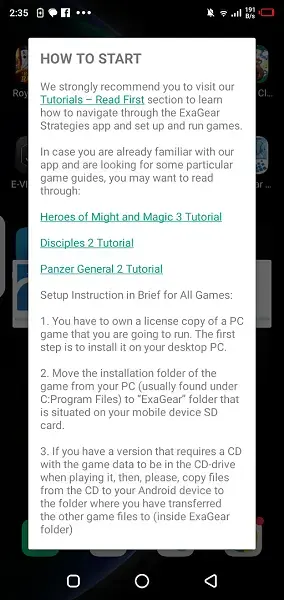
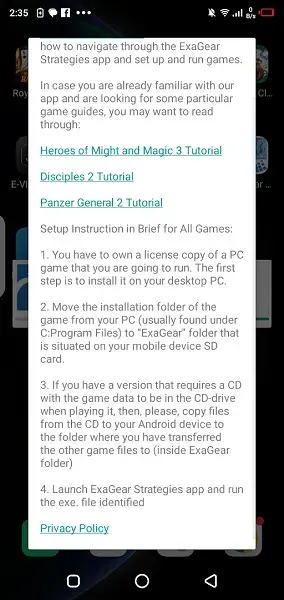
ExaGear Strategies does not include any PC games by default. You must supply your own legally obtained game files. The emulator then reads those files and launches the EXE inside its environment.
Copying game folders from a PC
Install your game normally on a Windows PC.
Locate the full installation folder, including the EXE and data subfolders.
Connect your Android device to the PC with a USB cable or use other secure transfer methods.
Copy the entire game folder to your phone storage, for example to Internal storage/ExaGear/ or a similar custom path.
Configuring the EXE inside the app
Open ExaGear Strategies on your device.
Use the built in file browser or configuration screen to navigate to the game folder.
Select the game EXE, such as heroes3.exe or similar.
Create a shortcut or profile so you can launch the game easily next time.
Once configured, the game launches inside the emulator with the control scheme you selected. You can adjust resolution and controls to improve performance and comfort.
Controllers and display settings
Strategy games depend heavily on accurate pointing and menu navigation. ExaGear Strategies includes several touch layouts that translate mouse clicks and keyboard shortcuts into taps and virtual buttons.
Virtual mouse mode for precise pointer control and menu navigation.
Tap to click options that simplify single and double clicks.
Keyboard overlays with common hotkeys mapped to on screen buttons.
Customizable layout editor so you can move, resize or hide buttons.
Display settings let you adjust resolution, aspect ratio and scaling. Lower resolutions can improve performance on less powerful devices, while higher resolutions improve text clarity on modern screens.
Troubleshooting common ExaGear Strategies issues
Because ExaGear Strategies runs PC games in an emulated environment, you may encounter configuration or performance issues. Some common problems and general tips include:
App closes or crashes on launch: Confirm the OBB file is placed in Android or obb or com.eltechs.es with the correct name and try again.
Game does not start: Check that the full game folder was copied, including all subfolders and data files, and that you are launching the correct EXE.
Slow performance: Lower the in game resolution if possible and adjust the emulator display settings to reduce load on the device.
Controls feel inaccurate: Open the control layout editor, move buttons away from screen edges, and tweak sensitivity settings.
If a particular title simply does not work well, it may be outside the practical compatibility range of the emulator or may need more advanced configuration than usual.
FAQs
Pros
- Enables selected Windows strategy games to run on Android
- Provides touch optimized control overlays and layouts
- Supports importing full PC game folders and EXE files
- Works mostly offline once setup is complete
- Offers configuration options to balance performance and quality
Cons
- Compatibility is limited to specific older PC games
- Setup requires manual file copying and OBB placement
- Performance can vary widely between devices
- User interface may feel complex for new users
- Not available on the official Google Play Store
Conclusion
ExaGear Strategies gives Android users a practical way to bring classic Windows strategy games to mobile. With the correct XAPK and OBB setup from our website and your own PC game data, you can run selected EXE titles with configurable touch controls and enjoy deep tactical gameplay on the go.




Comments
No approved comments yet.