

Microsoft Authenticator
Microsoft Authenticator is Microsoft’s official app for secure sign-ins, multi-factor authentication, and account protection on Android devices.
With this app, you can confirm logins using one-tap approval, time-based codes, or biometrics instead of relying only on passwords.
You can download the official Microsoft Authenticator APK directly from our website and start protecting your personal, work, and school accounts on your phone and tablet.
Rate this app
App details
- App name
- Microsoft Authenticator
- Category
- Business
- Version
- v6.2605.3042
- Size
- 58.95 MB
- Requirements
- 8.0 and Above
- Package name
- com.azure.authenticator
- Publisher
- Microsoft Corporation
- Price
- Free
- Mod
- No
- Downloads
- 106,152,416
- Rating
- 4.7 / 5
- Rating count
- 2,679,172
- Play Store
- Yes
- Requires root
- No
- Offline support
- Yes
- Contains ads
- No
- In-app purchases
- No
- Updated
- Jun 3, 2026
- Age rating
- Rated for 3+
Table of contents
What is Microsoft Authenticator App?
Microsoft Authenticator is a free security app from Microsoft Corporation that helps you sign in to your accounts more safely. It supports multi-factor authentication (MFA), two-factor authentication (2FA), and passwordless sign-ins, reducing the risk of someone accessing your data with just a stolen password.
The app works with Microsoft accounts such as Outlook, OneDrive, Xbox, and Microsoft 365, and it also supports many non-Microsoft services that use standard verification codes. Once you add an account, Microsoft Authenticator generates time-based one-time passwords or sends push notifications that you can approve on your phone.
On Android, the app runs on devices with Android 8.0 and above. After you install the APK from our website and complete setup, you can secure logins for email, cloud storage, productivity tools, and many other online services from one place.
Why Download Microsoft Authenticator for Android?
Passwords alone are often not enough to protect important accounts. Microsoft Authenticator adds a second layer of security that makes it much harder for attackers to sign in, even if they know your password.
By downloading the Microsoft Authenticator APK from our website, you get the official Android app in a convenient installer. You can use it to confirm sign-in requests with a tap, generate one-time codes when you are offline, and enable passwordless access for supported Microsoft accounts.
For students, employees, and personal users, this means safer access to email, files, and collaboration tools with minimal extra effort during sign-in.
How Microsoft Authenticator Is Useful?
Microsoft Authenticator improves both security and convenience in everyday use. When you sign in, you can simply approve a notification instead of typing long codes. If notifications are not available, you can open the app and use the time-based one-time password (TOTP) shown on the screen.
The app also supports biometric verification, such as fingerprint or face recognition, on compatible devices. This means that even if someone has your phone, they still cannot approve sign-in requests without passing your biometric check or device lock.
For work and school, Microsoft Authenticator integrates with Azure Active Directory and Microsoft 365, helping organizations enforce strong authentication policies while keeping the sign-in experience simple for users.
How to Download and Install Microsoft Authenticator APK?
You can get the official Microsoft Authenticator APK file directly from our website and install it on your Android device. Make sure your phone runs Android 8.0 or higher before you start.
Follow these steps to download and install:
Scroll to the download section on this page and tap the APK download button for Microsoft Authenticator.
Wait for the APK file to finish downloading on your Android device.
Open your device settings and, if required, allow installation from your browser or file manager.
Locate the downloaded APK in your notifications or downloads folder and tap it.
Press Install, then wait for the installation process to complete.
Open Microsoft Authenticator, sign in with your Microsoft account, or scan a QR code to start adding accounts.
After setup, you can start using the app immediately to approve sign-ins and generate security codes for your accounts.
Features
Multi-factor authentication support
Add a second step to your logins using push approvals, codes, or biometrics to strengthen account security.
Two-factor authentication codes
Generate time-based one-time passwords for Microsoft and many third-party services that support standard 2FA.
Passwordless sign-in for Microsoft accounts
Sign in to supported Microsoft accounts without entering a password by approving notifications in the app.
Account management in one place
Store and manage multiple personal, work, and school accounts inside a single authenticator app.
Biometric and device lock protection
Use fingerprint, face recognition, or device PIN to secure access to the app and approvals.
Works even when offline
View time-based verification codes without an internet connection when push notifications are not available.
Cross-platform ecosystem integration
Integrates with Microsoft services such as Outlook, OneDrive, Xbox, and Microsoft 365, as well as Azure Active Directory.
Free to download and use
Install and use the app without any subscription fees or in-app purchases.
Screenshots
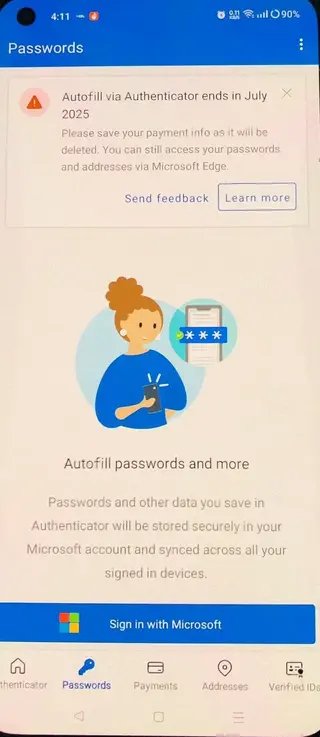
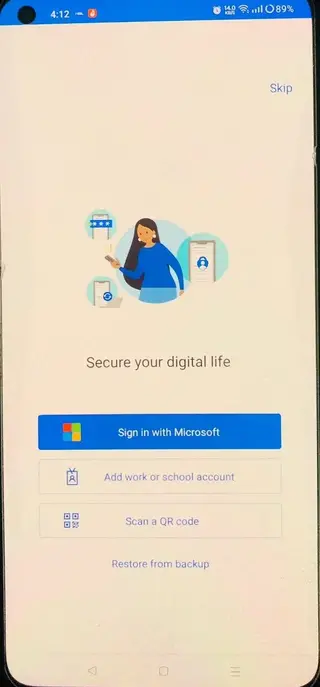
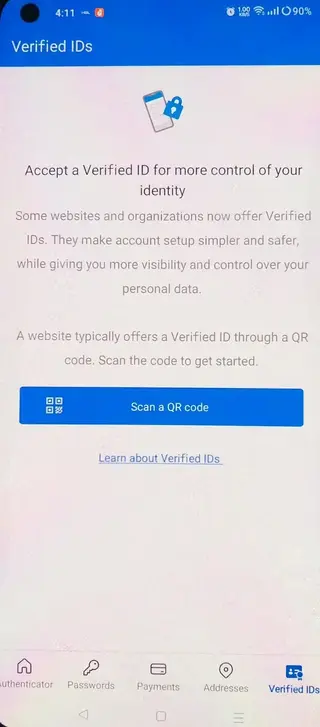
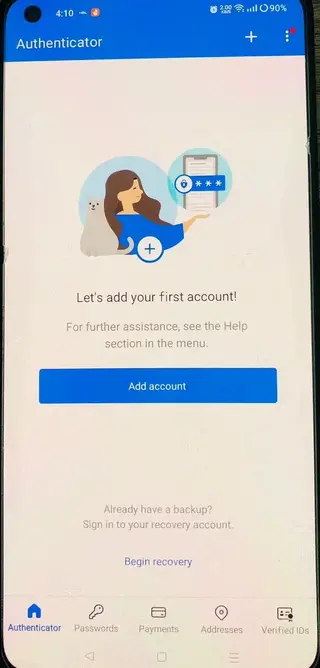
How Microsoft Authenticator Works
After installing Microsoft Authenticator, the first step is to add your accounts. For most Microsoft accounts and many work or school accounts, you simply sign in or scan a QR code provided on the sign-in page. The app then links your device to your account for future approvals.
When you try to sign in to a protected service, you usually receive a notification on your phone. You open Microsoft Authenticator, verify that the sign-in details match, and tap Approve. For some logins, you may need to match a number shown on the screen or confirm using your fingerprint or face.
If notifications are unavailable, you can open the app and use the time-based code shown under the account name. This code refreshes automatically every 30 seconds and can be entered as the second step during sign-in.
Security Tips for Using Microsoft Authenticator
To keep your accounts safe, it is important to protect both your phone and the authenticator app. Always use a strong device lock, such as a PIN, pattern, fingerprint, or face recognition. Enable biometric protection inside the app if your device supports it.
Consider setting up backup methods such as recovery codes or alternate sign-in options for important accounts. This helps you regain access if you lose your phone or need to move to a new device. When changing phones, follow Microsoft’s recommended backup and restore process so you do not lose your authenticator configurations.
Never approve a sign-in notification you did not initiate. If you see unexpected prompts, deny them and change your account password immediately.
Who Should Use Microsoft Authenticator
Microsoft Authenticator is useful for anyone who wants stronger security for their accounts. Everyday users can protect personal email, cloud storage, and gaming profiles. Students and teachers can secure access to school portals and Microsoft 365 for Education. Professionals can use it with their work accounts to meet company security requirements while keeping sign-ins quick and manageable.
Organizations that rely on Microsoft 365 and Azure Active Directory often encourage or require employees to use Microsoft Authenticator for MFA and passwordless access, because it strikes a good balance between security and convenience.
FAQs
Pros
- Official authentication app from Microsoft with deep integration into Microsoft services
- Supports multi-factor and two-factor authentication for many personal, work, and school accounts
- Passwordless sign-in reduces reliance on passwords and improves security
- Works offline for code generation when there is no network connection
- No ads and no subscription fees or in-app purchases
- Supports biometric verification for faster and more secure approvals
Cons
- Requires a modern device with Android 8.0 or higher
- Initial setup and understanding MFA concepts can be confusing for new users
- Losing access to your phone without backup methods can temporarily lock you out of accounts
- Limited usefulness for users who rarely enable two-factor authentication
Conclusion
Microsoft Authenticator is a reliable security tool for protecting your online accounts with strong, yet simple, authentication. By downloading the APK from our website, you can quickly install the official app on your Android device, add your personal, work, and school accounts, and secure sign-ins with codes, notifications, and biometrics instead of relying only on passwords.




Comments
No approved comments yet.