
Copy My Data
Copy My Data is a simple Android tool that helps you move contacts, photos, videos, messages, and other data from one phone to another in a few easy steps. It is designed for users who are switching to a new device and want to keep their important information.
The app uses either a Wi‑Fi connection or Google Drive backup to transfer your data, so you do not need cables or a computer. You can download the official Copy My Data APK directly from our website and start copying your files quickly.
Whether you are upgrading your phone or setting up a family member’s device, Copy My Data keeps the process straightforward, with a clean interface and guided steps suitable for all experience levels.
If you want to get more similar applications, then we have some of the best suggestions available here. You guys can easily get DITO and Widget Share, both of these are quite popular tools, which you can also get and have fun with.
Rate this app
App details
- App name
- Copy My Data
- Category
- Tools
- Version
- v70.1.0
- Size
- 45.7 MB
- Requirements
- 4.4 and Above
- Package name
- com.mediamushroom.copymydata
- Publisher
- Red Sky Labs
- Price
- Free
- Mod
- No
- Downloads
- 284,562
- Rating
- 4.8 / 5
- Rating count
- 4
- Play Store
- Yes
- Requires root
- No
- Offline support
- Yes
- Contains ads
- No
- In-app purchases
- No
- Updated
- May 16, 2026
- Age rating
- Rated for 3+
Table of contents
What is Copy My Data App?
Copy My Data is a data-transfer and backup tool for Android phones and tablets. It focuses on moving personal information from one device to another without complex setup. You can copy contacts, calendar events, photos, videos, and other key data in a guided process.
The app supports two main transfer methods. You can copy content directly between two phones connected to the same Wi‑Fi network, or create a backup to Google Drive and restore it on another device. Both methods are designed to reduce manual work and avoid missing important files during a phone change.
Copy My Data runs on Android 4.4 and above and works alongside your existing Google account. The APK available on our website lets you install the app even if it is not visible on the Play Store for your device or region.
Why Download Copy My Data APK from Our Site
Downloading the Copy My Data APK from our website gives you direct access to the current Android version without extra steps. You can save the installer, share it with others, and reinstall it whenever you change or reset your phone.
The APK makes it easier to use Copy My Data on devices where the Play Store version might be limited or unavailable. You still get the same core features: copying contacts, photos, videos, messages, and other supported data between Android phones using Wi‑Fi or Google Drive.
By keeping the installer on your storage, you can prepare in advance before buying a new phone, then quickly install the app on both devices and move your information in one session.
How Copy My Data Helps Android Users
Copy My Data is useful whenever you need to migrate content between devices with minimal effort. Instead of moving files piece by piece, the app groups your data into clear categories and transfers them in bulk.
For everyday users, this means less risk of forgetting items like call history, messages, or smaller photo albums. For people who regularly help friends and family set up new phones, it provides a repeatable, familiar workflow that saves time.
The Google Drive option offers an extra layer of flexibility. You can back up your data, sign in on another device later, and restore it when you are ready, which is handy if the old and new phones are not in the same place at the same time.
How to Download and Install Copy My Data APK
You can download the official Copy My Data APK directly from our website and install it on your Android device. Follow these steps to get started:
Scroll to the download area on this page and tap the Copy My Data APK download button.
Confirm the download and wait until the APK file is fully saved on your device.
Open your phone settings and, if required, allow installation from unknown apps for your browser or file manager.
Locate the downloaded APK in your Downloads folder and tap it to start installation.
Follow the on-screen prompts to install Copy My Data on your device.
Repeat the installation on the second device if you plan to transfer data between two phones.
After installation, open the app on both devices and follow the on-screen instructions to copy your data over WiFi or with a Google Drive backup.
Features
Two transfer methods
Transfer data over a shared WiFi network or via Google Drive backup and restore.
Simple migration wizard
Step by step screens guide you through selecting devices and choosing what to copy.
Multiple data types supported
Move contacts, calendar events, photos, videos, and other supported phone data.
Device to device transfer
Copy content directly between two Android phones or tablets without a computer.
Google Drive backup support
Create a backup to your Google Drive account and restore it on another device.
No root required
Works on standard Android devices without any rooting or advanced modifications.
Lightweight interface
Clean and minimal design keeps the focus on the transfer process with few distractions.
One time setup
Install on both devices, connect once, and copy large amounts of data in a single run.
Screenshots
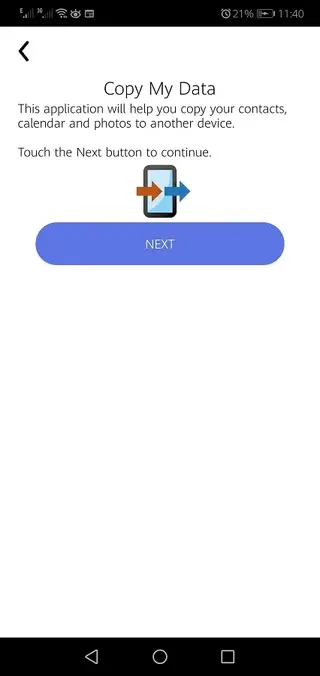
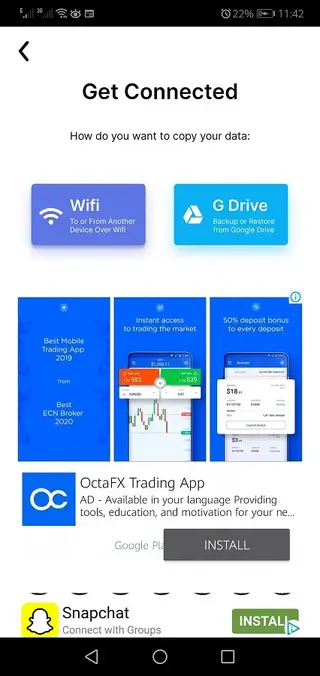
How Copy My Data Transfer Over WiFi Works
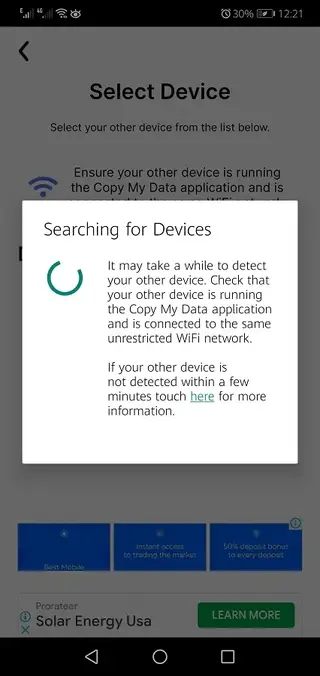
The WiFi transfer option connects your old and new devices on the same local network. One phone acts as the sender and the other as the receiver. The app scans for nearby devices running Copy My Data and lets you pair them with a simple confirmation.
After you choose what to copy, such as contacts, calendar, photos, or videos, the app sends the data over the local network. This method avoids mobile data usage and can be faster than uploading and downloading large backups over the internet.
Using Google Drive Backup and Restore
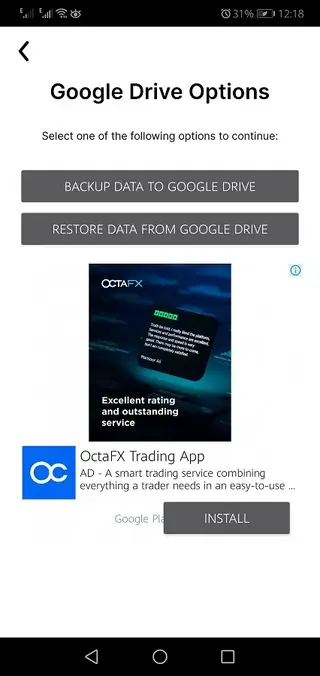
If your devices cannot be on the same network, you can use Google Drive. On the source device, you create a backup to your Google account. The app packages your selected data and uploads it to your Drive storage.
On the target device, you sign in with the same Google account inside Copy My Data and restore that backup. This approach is helpful when upgrading to a new phone that you receive later or when the two devices are in different locations.
Tips for a Smooth Transfer
To reduce errors, keep both devices charged or connected to power during the transfer. Close heavy apps that may slow down the phones, and avoid switching networks while copying data.
For large photo and video libraries, consider transferring in smaller batches if your WiFi is unstable. Always check the new device after the process to confirm that your most important contacts, photos, and other data arrived correctly.
FAQs
Pros
- Very easy to use, suitable for non technical users
- Supports both WiFi and Google Drive transfer methods
- Covers key data types like contacts, photos, videos, and calendar
- No cable or computer required for phone to phone transfer
- Lightweight app that runs on older Android versions
Cons
- Both devices must share the same WiFi network for direct transfer
- Transfer speed depends on WiFi quality and data size
- Does not cover every possible app’s internal data
- Interface and feature set are basic compared to some newer migration tools
Conclusion
Copy My Data offers a straightforward way to move important information from one Android device to another using WiFi or Google Drive. If you are preparing a new phone and want a simple, guided transfer process without cables or complex tools, downloading the Copy My Data APK from our website is a practical solution.




Comments
No approved comments yet.